
How to Add Patient Self-Scheduling to Your Medical Practice Website
A setup checklist for small practices: choose visit types, add a booking button, test the patient flow, and keep the front desk working from the right calendar.
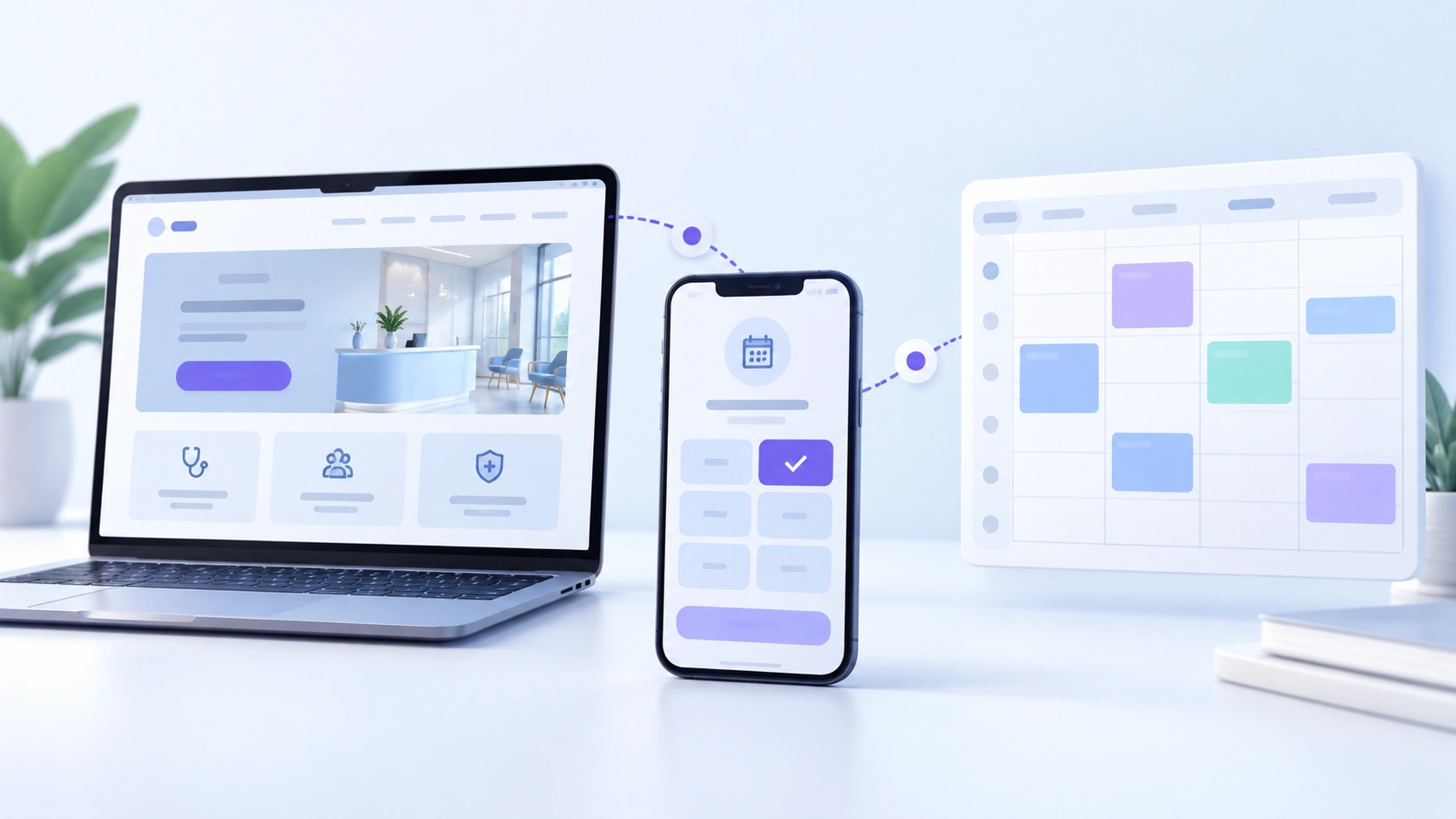
A patient reaches your clinic's website after the office has closed. They have found the right provider, but the only way to make an appointment is to call tomorrow. Adding patient self-scheduling gives them another option. The important part is making sure the appointment they choose is one your team can actually handle.
For a solo provider or a small practice, start with a booking page linked from the website you already have. You do not need to begin with a website redesign. You do need to decide which visits patients can book, which calendar controls availability, and who checks the result.
This guide walks through that setup. If you are still choosing a platform, our medical appointment scheduling software comparison covers that earlier decision.
1. Decide which calendar controls the available times
Before adding a button, ask one question: when the front desk books an appointment by phone, how does that time stop being available online?
Your team needs a clear answer. If telephone bookings go into one calendar and website bookings go into another, someone has to keep them aligned unless a working integration does it. Having two tabs open is not synchronization.
Write down the calendar your team will work from and name the person responsible for schedule changes. Include phone bookings, provider time off, cancellations, and changes made after hours. If your practice keeps its EHR, ask the scheduling vendor to demonstrate the exact arrangement with that system. Do not assume that using two products together means appointments automatically sync between them.
2. Start with a small, clearly defined set of visits
Suppose a two-provider office wants to offer new-patient consultations and routine follow-ups online. Before exposing those times, agree on these details:
- Which provider and location can handle each visit.
- How long the appointment should be.
- Whether a new patient and a returning patient need different options.
- Which requests need a staff conversation instead of self-booking.
- Who checks insurance or referral requirements, and when.
Use labels a patient can recognize. An internal scheduling abbreviation may be clear to staff but meaningless to someone making a first appointment. If the available options do not cover a patient's situation, give them a way to contact the office rather than forcing them to choose the nearest label.
These are setup decisions to discuss with your vendor, not a promise that every scheduling tool supports every rule automatically. Ask to see your actual visit types working before launch.
3. Add patient self-scheduling to your existing website
Get the patient-facing booking URL for your practice from your scheduling account or onboarding team. Open it while signed out and check the practice name, providers, location, and appointment choices. Use the public booking URL, not an administrator link or a URL copied from a patient's private session.
Then add a button using your website's existing editor:
- Choose the page and insert a button or edit the current appointment button.
- Use a direct label such as Book an appointment.
- Paste the verified booking URL into the button's link field.
- Preview it on a phone and a desktop, then publish the website change.
For a WordPress site using the block editor, the Buttons block lets you set the button text and link. Other site builders have similar link controls; an agency-managed site may require your web team to make the edit. A link-based setup does not require an embedded booking widget.
Put the main button where a visitor can find it without searching: in the header or near the top of the page. Add a relevant booking link to provider or location pages where patients decide whom to see. For a multi-location practice, check that each link opens the intended location. Keep the office phone number available for people who need help.
4. Follow the patient through the whole booking
A button that opens is only the first check. In an approved demo or test environment, follow the path from the clinic website to the appointment confirmation. Use fictional patient details and make sure test notifications cannot reach real patients.
On a phone, check whether you can choose the intended clinician, location, visit type, and time without zooming in or guessing. If no time is available, does the page explain what to do next? Read the final message: a received request and a confirmed appointment should not look like the same outcome.
Then check the staff side. Is the appointment in the correct calendar, assigned to the right provider, with the expected duration? Ask someone other than the person who configured it to repeat the test. A fresh pair of eyes often catches labels or steps the setup team has stopped noticing.
5. Plan what happens between booking and arrival
The confirmation should tell the patient where to go, when to arrive, and how to contact the office about changes. Decide who handles questions that arrive after booking and whether any information needs checking before the visit.
If you use digital intake forms, connect that step to the appointment process so patients know what to complete. Do not send them to a general website contact form to submit medical records. Ask your team to review the information you collect and the approved way to receive it.
Include cancellations in your test. Check what happens to the original appointment and the newly available time. If you use a waitlist, establish how an offer is sent and how the replacement appointment is confirmed. A cancellation message alone does not mean the empty slot has been filled.
6. Launch narrowly and watch the handoffs
Start with one location or a manageable set of appointment types. Tell the front desk what is available online, who owns exceptions, and where to report a confusing booking. Expand after the team can handle that small set reliably.
Keep a short launch checklist:
- The website button opens the right practice booking page.
- Patient-facing times match the calendar the team uses.
- Visit labels and appointment lengths are correct.
- Confirmation, reminders, cancellation, and intake steps have been tested.
- The patient has a clear way to reach the office when self-booking is not suitable.
- Staff know who handles an incomplete or incorrect booking.
7. Measure appointments, not just button clicks
Separate the steps you want to understand: someone clicks the website button, starts booking, completes a booking, and eventually attends the visit. Each answers a different question. Ten button clicks do not mean ten new patients.
If patients click but do not complete a booking, first check the available times, visit labels, mobile experience, and any account or verification steps. These are hypotheses to investigate, not proof that one step caused the drop-off. If bookings complete but patients call for clarification, look at the confirmation and arrival instructions.
Ask your web team how website clicks and completed bookings will be measured, especially when the booking page is on another domain. Keep analytics free of names, medical information, insurance details, and private booking links. Review completed and attended appointments with the front desk alongside the numbers, and exclude staff tests.
Where BestDoc fits
With BestDoc online booking, you can link your practice's booking page from your website. Patients choose an available time, and the appointment appears in your BestDoc calendar. Your team sets the appointment types, office hours, and provider schedules. Text and email reminders, digital intake, and a waitlist support the steps around the visit.
If you already use an EHR, bring its name and your current scheduling process to the demo. The useful question is not just whether two systems can be used side by side, but who maintains each record and what, if anything, is transferred automatically.
Request a BestDoc demo to walk through a booking page and calendar for a sample practice. Bring your website address and one appointment type you want to offer online, so the conversation starts with your actual setup.
Frequently asked questions
Do I need a new website to add online booking?
Not for a link-based setup. If you can edit a button or link on your current site, you can point it to a patient-facing booking page. Check the destination and the complete patient flow before publishing the change.
Should I use a booking button or an embedded widget?
A button linking to a booking page is a straightforward starting point. Consider an embedded widget only if your scheduling vendor supports it and your web team can check it on mobile, with the site's accessibility and privacy requirements.
Can we keep our current EHR?
You may be able to use a separate front-office scheduling system alongside it. Confirm the workflow for your particular EHR. Do not assume automatic two-way calendar synchronization without a demonstrated integration.
What should we track after launch?
Website booking clicks, completed bookings, attended appointments, and the problems staff have to resolve. Keep these measures separate, exclude tests, and check with your team whether online booking is making the work easier.